

Meta Initial Setup
Last updated 24 Oct 2026
Meta Initial Setup
Double click on the Meta Horizon Link icon to begin the setup process.
Note: Please use these instructions only if this is the initial Meta setup on the laptop, or if a new Oculus Rift S headset is being setup.
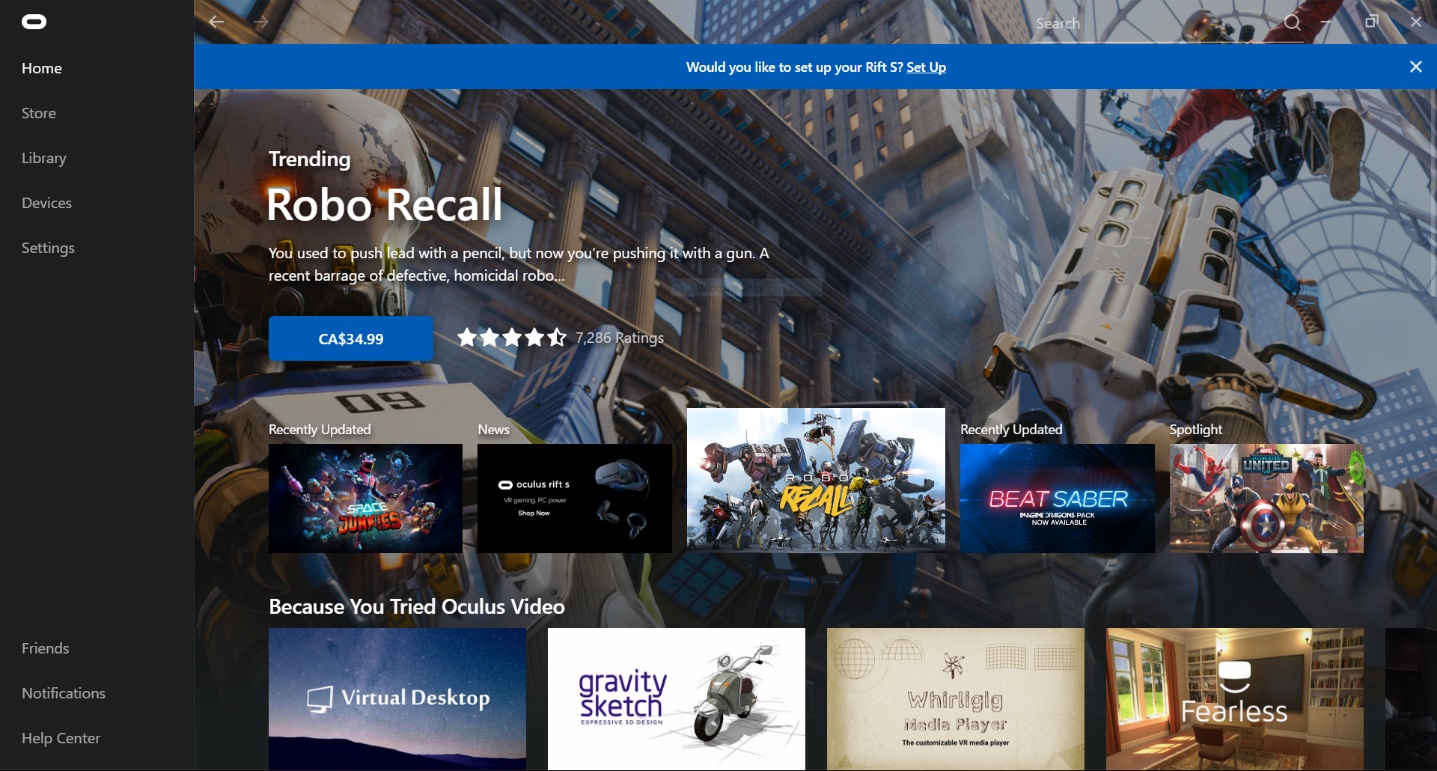
Click on the underlined text, Set Up to begin calibrating the headset. Alternatively, you may go to the Devices page, click on the connected Oculus Rift S headset, scroll down, and click on Device Setup.
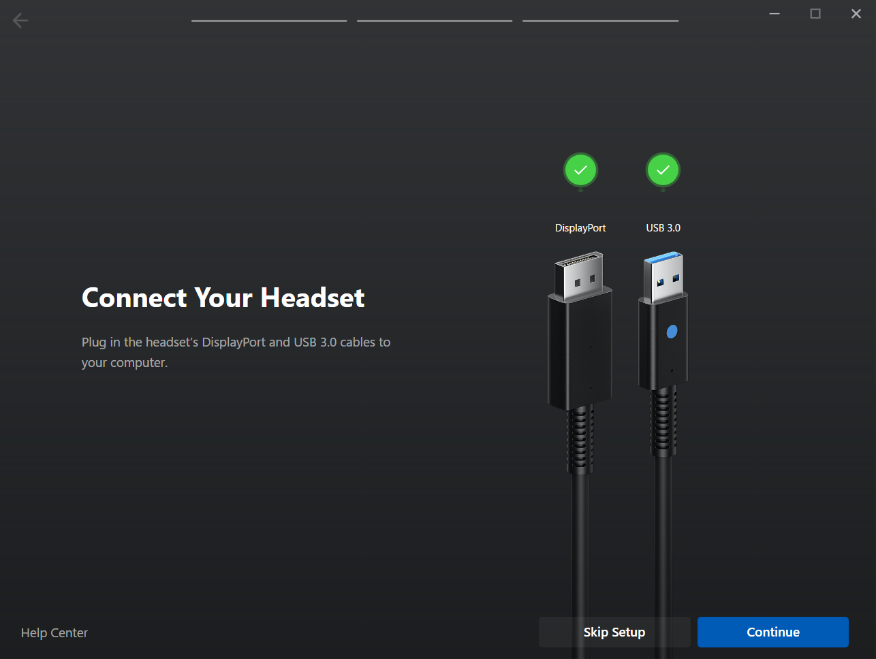
Connect your Headset
This screen will tell us if the headset is properly connected to the laptop. With two green check marks, click Continue.
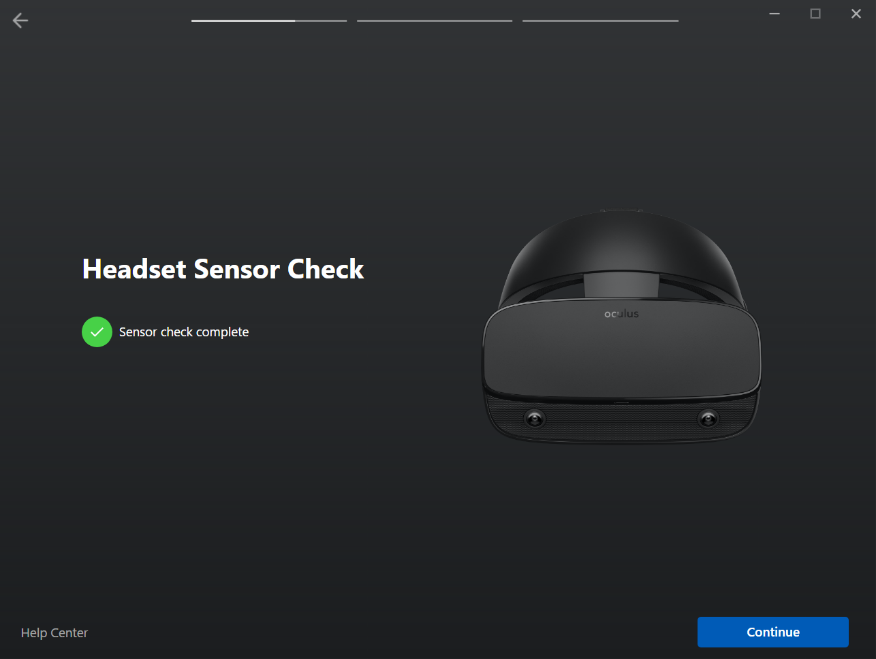
Headset Sensor Check
This screen will perform a connectivity test for the sensors inside the headset. With a green check mark, click Continue.
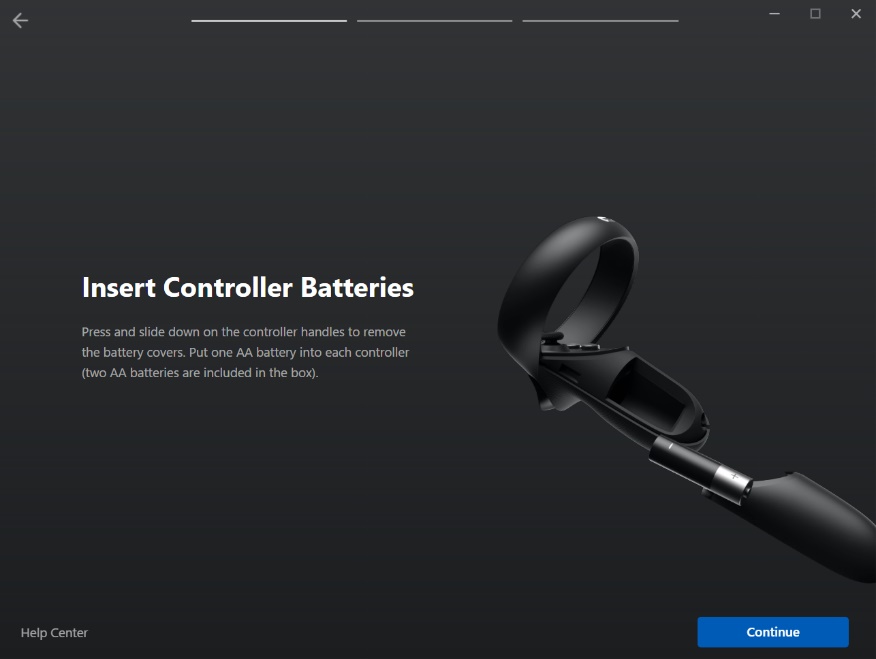
Insert Controller Batteries
Ensure the AA battery is inserted into each Oculus controller; both battery covers are magnetic and will easily slide off.
Pair Your Left Controller
Hold in the menu button and the Y button on the right Touch controller until it vibrates as instructed on the screen.
After the vibration, check that the process has completed on the laptop and click Continue.
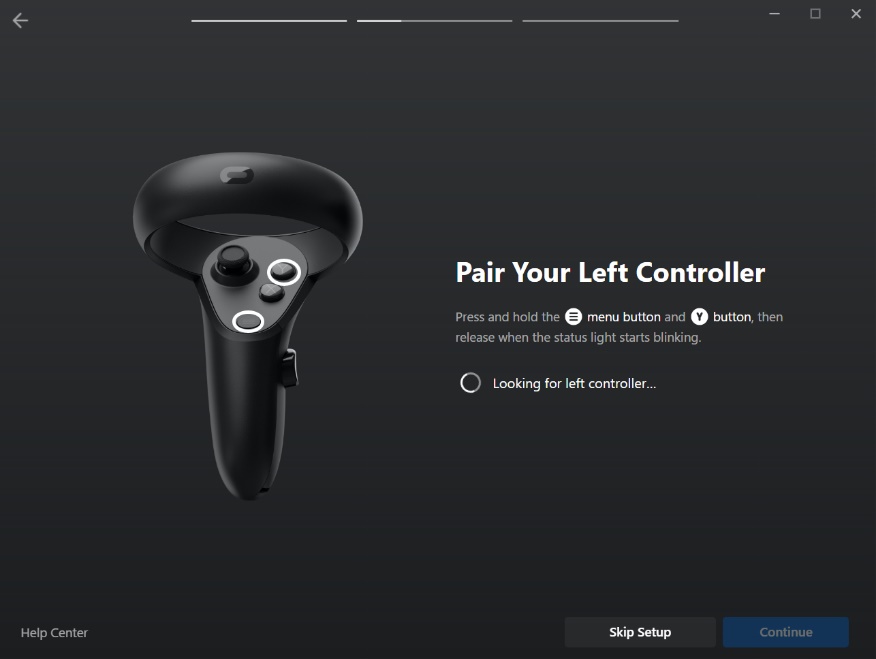
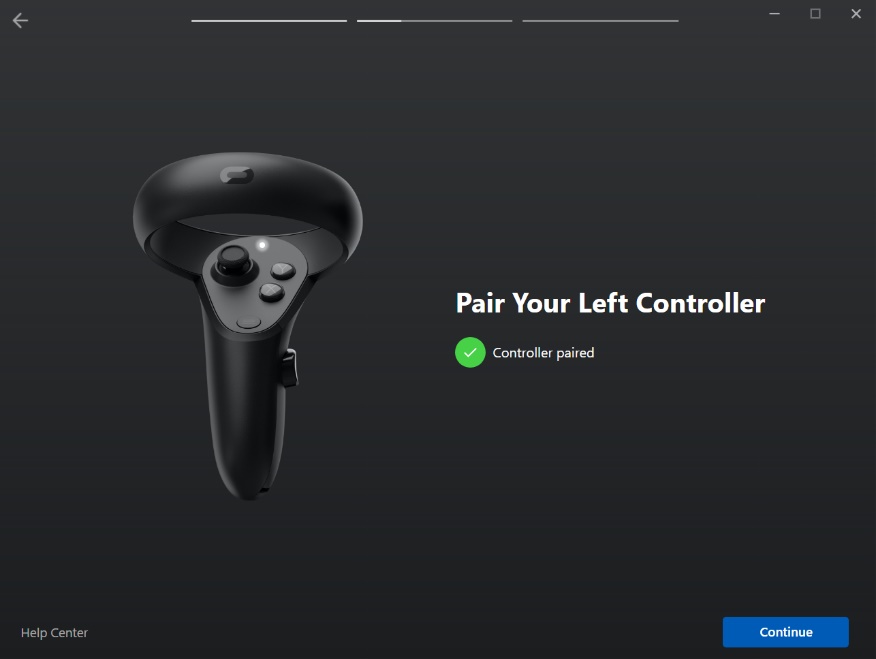
After pairing the left controller, please insert it into the Rift S mount on the simulator’s frame. (See How to remove/insert Oculus controller on mount document)
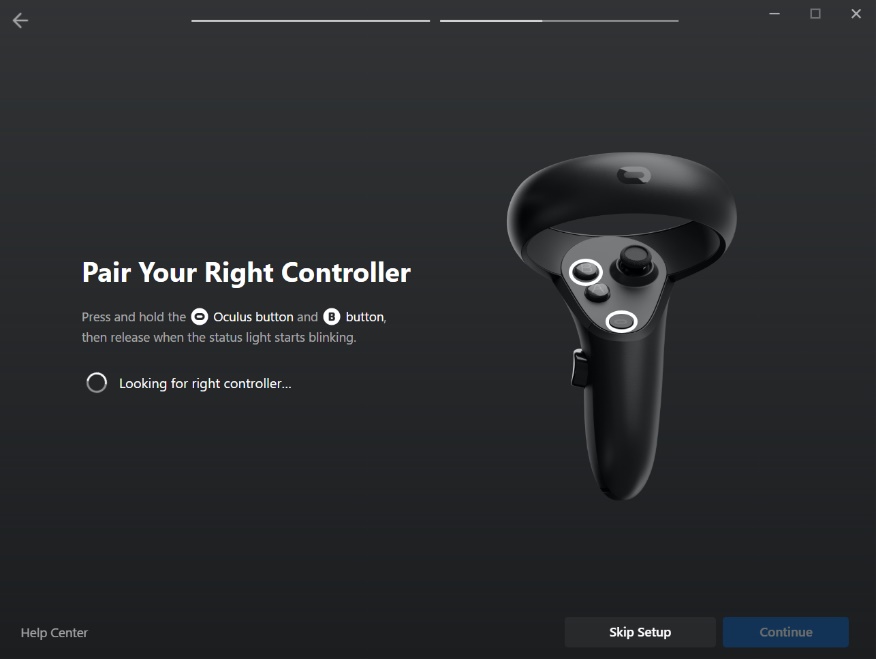
Pair Your Right Controller
Hold in the Oculus button and the B button on the right Touch controller until it vibrates as instructed on screen.
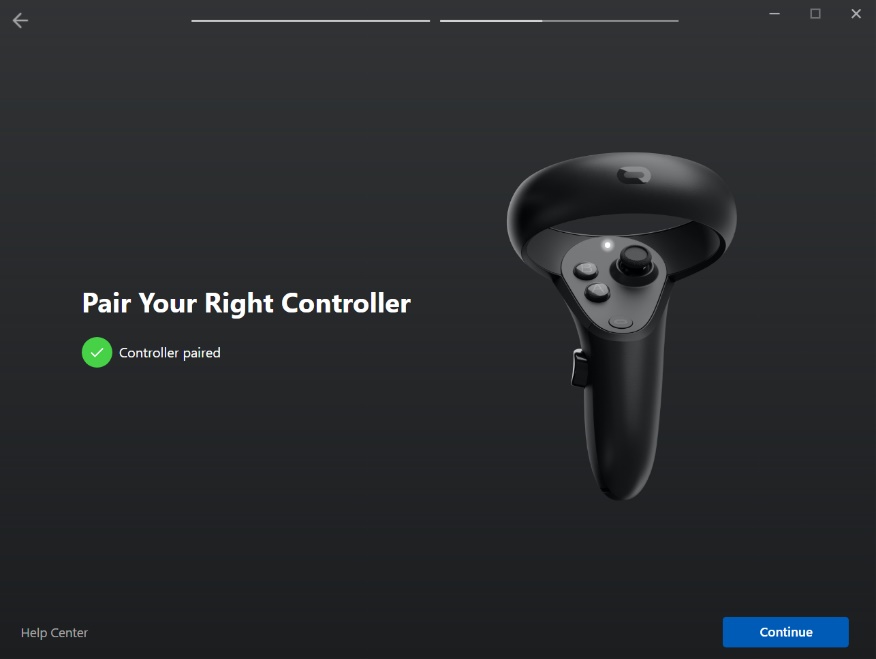
After the vibration, check that the process has completed on the laptop and click Continue.
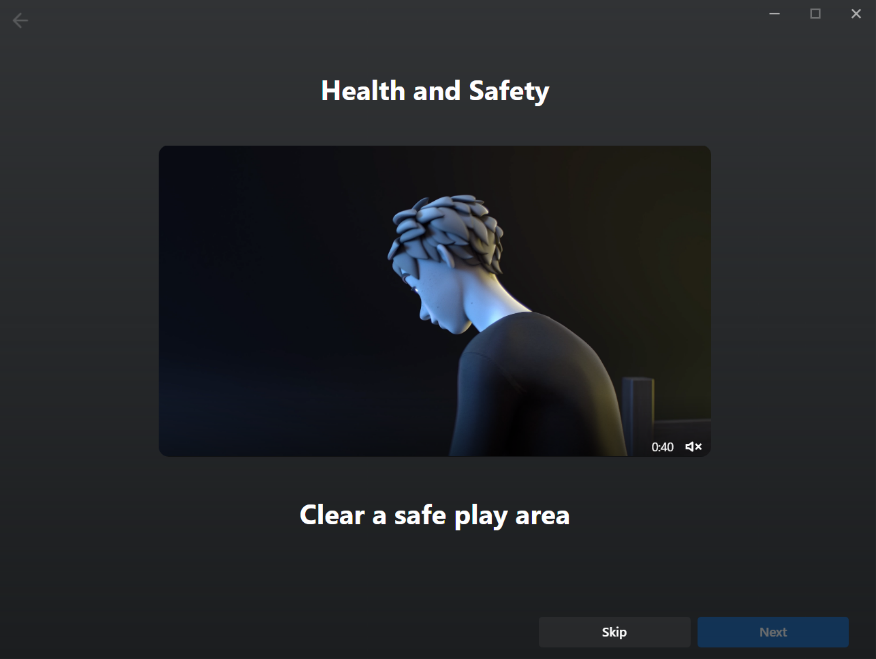
Health and Safety
Meta will play a short Health and Safety video. After watching this video, click Next.
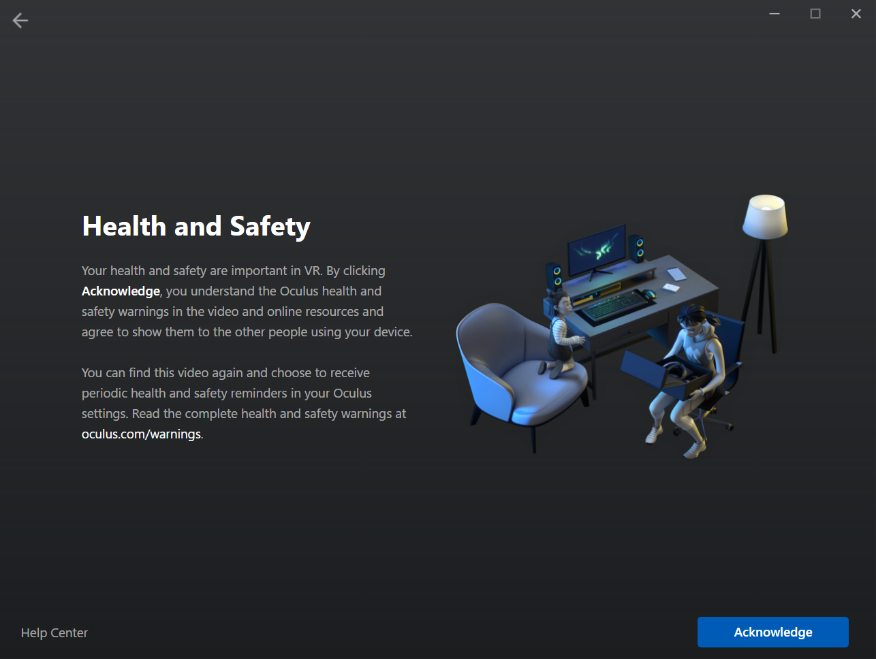
On the next page, you will have to acknowledge that you understand the Meta health and safety warnings and agree to show them to other people. Click Acknowledge to continue.
At this stage of the setup, the process will continue virtually. The person completing the Meta setup should continue following the instructions in the simulator while wearing the headset, as the remaining setup instructions will be provided within the headset.
See Meta Guardian setup document to continue setup.
If you require any assistance with the setup, please contact SIMS support
Email support@industrialsims.com
or
Call us at 1.888.446.1688 between the hours of 1am to 5pm MST.*
*Please have simulator serial number ready as it is required to verify your license