

Headset stuck displaying black with three dots
Last updated 24 Oct 2026
Please follow each troubleshooting method in order until the issue is resolved
Method 1:
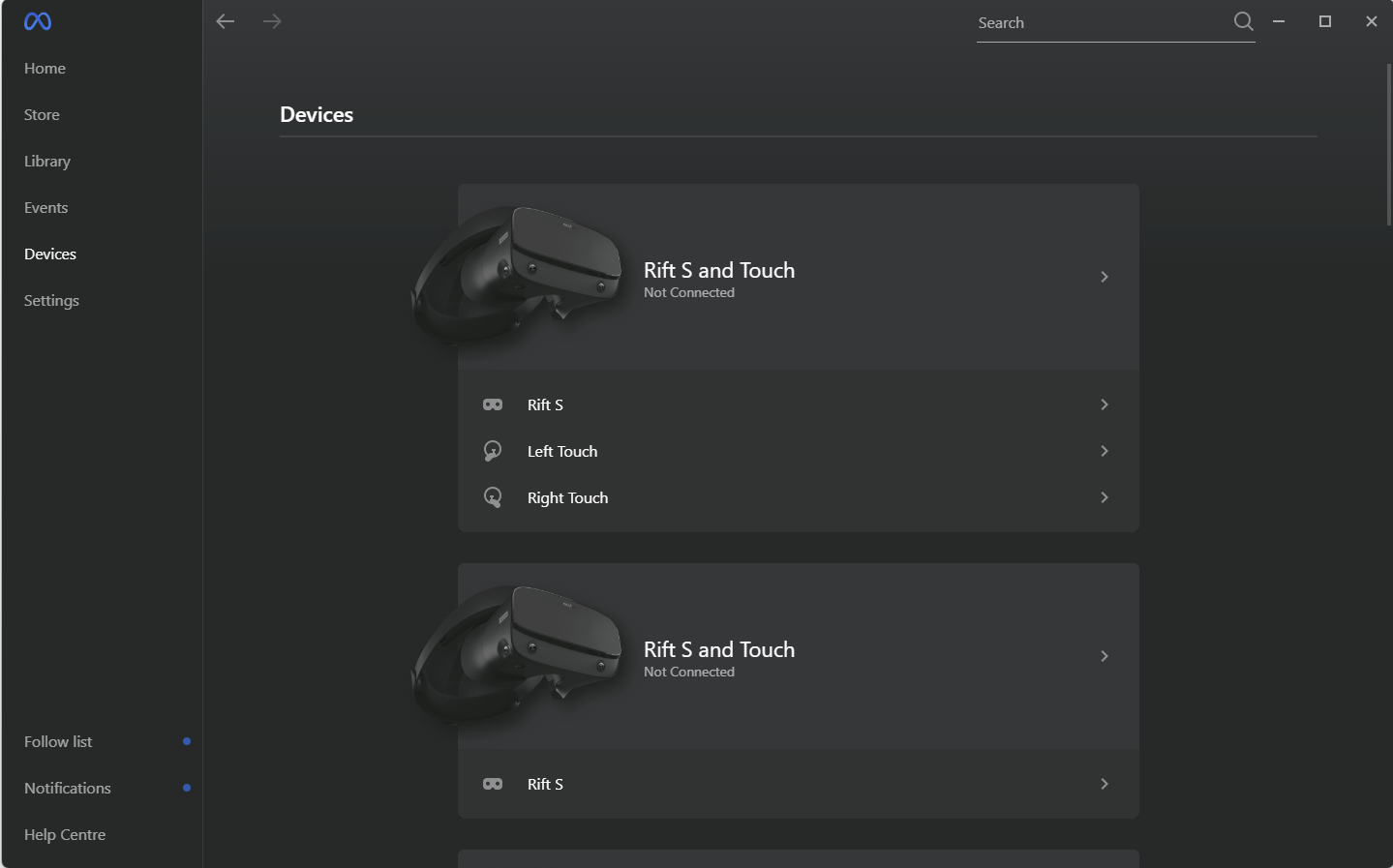
Reset the headset by navigating to the “Devices” menu on the left hand side of the Oculus desktop application, you should see something similar to the following:
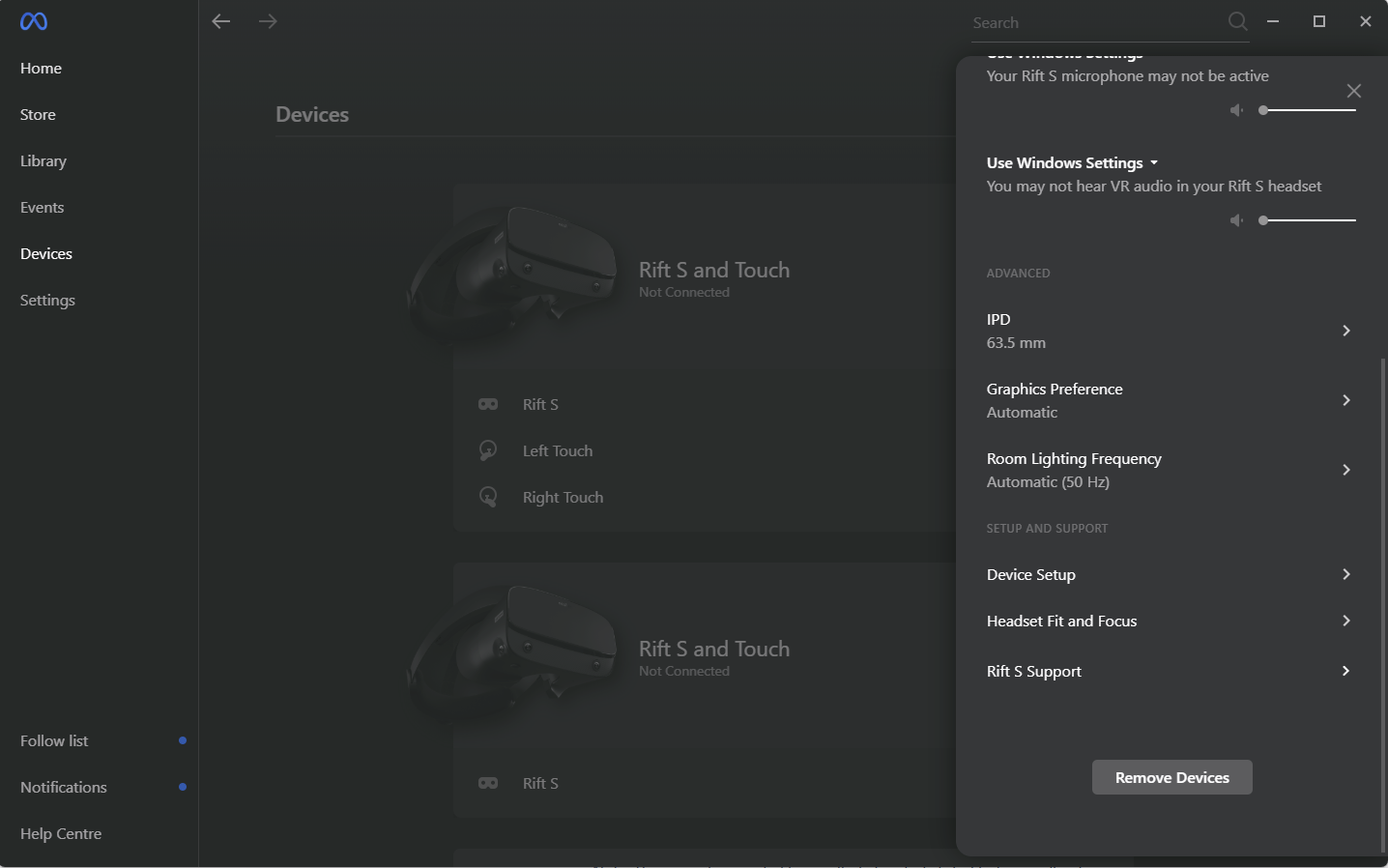
From here, select the headset that is connected and from the menu that appears on the right, select “Device Setup” by scrolling to the bottom.
From here you will see the following screen:
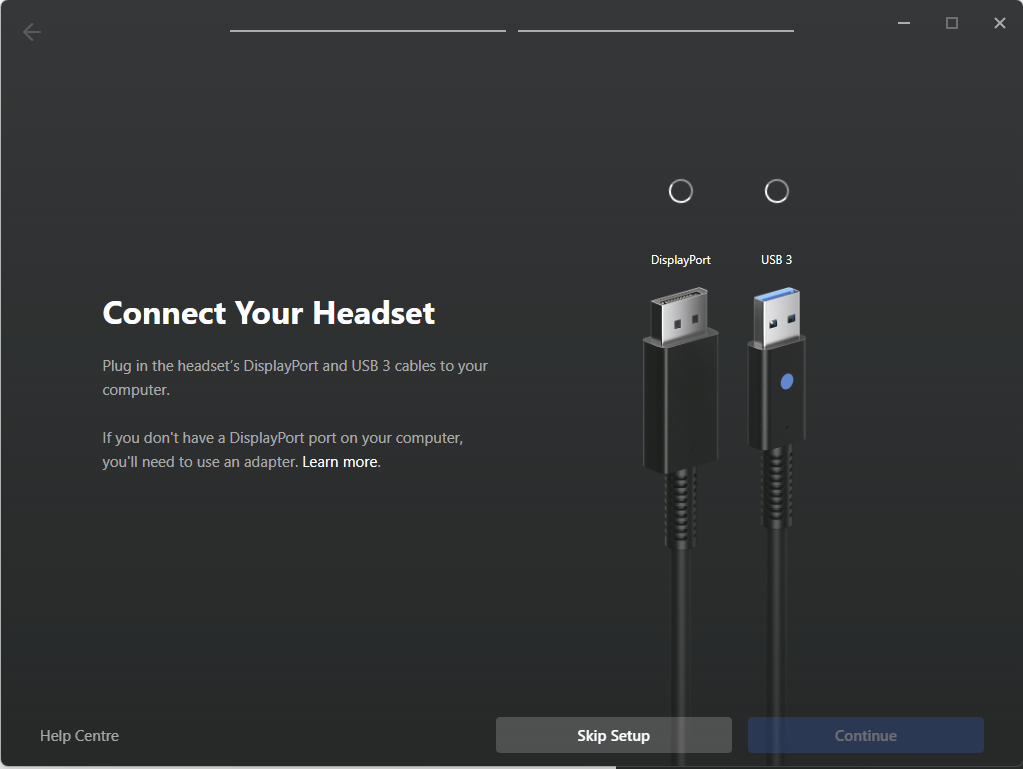
Please follow the instructions on the screen to reset the headset. If you require any extra instruction for this, please consult this article on Oculus Setup.
Method 2:
Close the Oculus desktop application down.
Open task manager either by right clicking the Windows button and selecting it from the list that pops up, using the Ctrl + Alt + Del keyboard shortcut or by searching for the application in the Windows search bar.
Scroll down until you find the following three background processes:

Once you find these processes, end them by right clicking them and selecting “End Task”
Reopen the Oculus desktop application, this process will force it to hard reset and should fix the issue
Method 3:
The headset may be experiencing power delivery issues, try swapping the USB port that the headset is connected to on the laptop. Alternatively, check that there is no damage to the headset cable itself
Other notes
The headset is sensitive to light and reflections, make sure that the headset is not near any windows or exposed to any very bright lights. Minimise the number of individuals that are walking around the area where the simulator is set up and when not in use, store the headset such that it is facing something ‘interesting’. If the headset is left facing something such as a plain carpet or a wall with nothing on it then it will potentially struggle to keep track of its location.